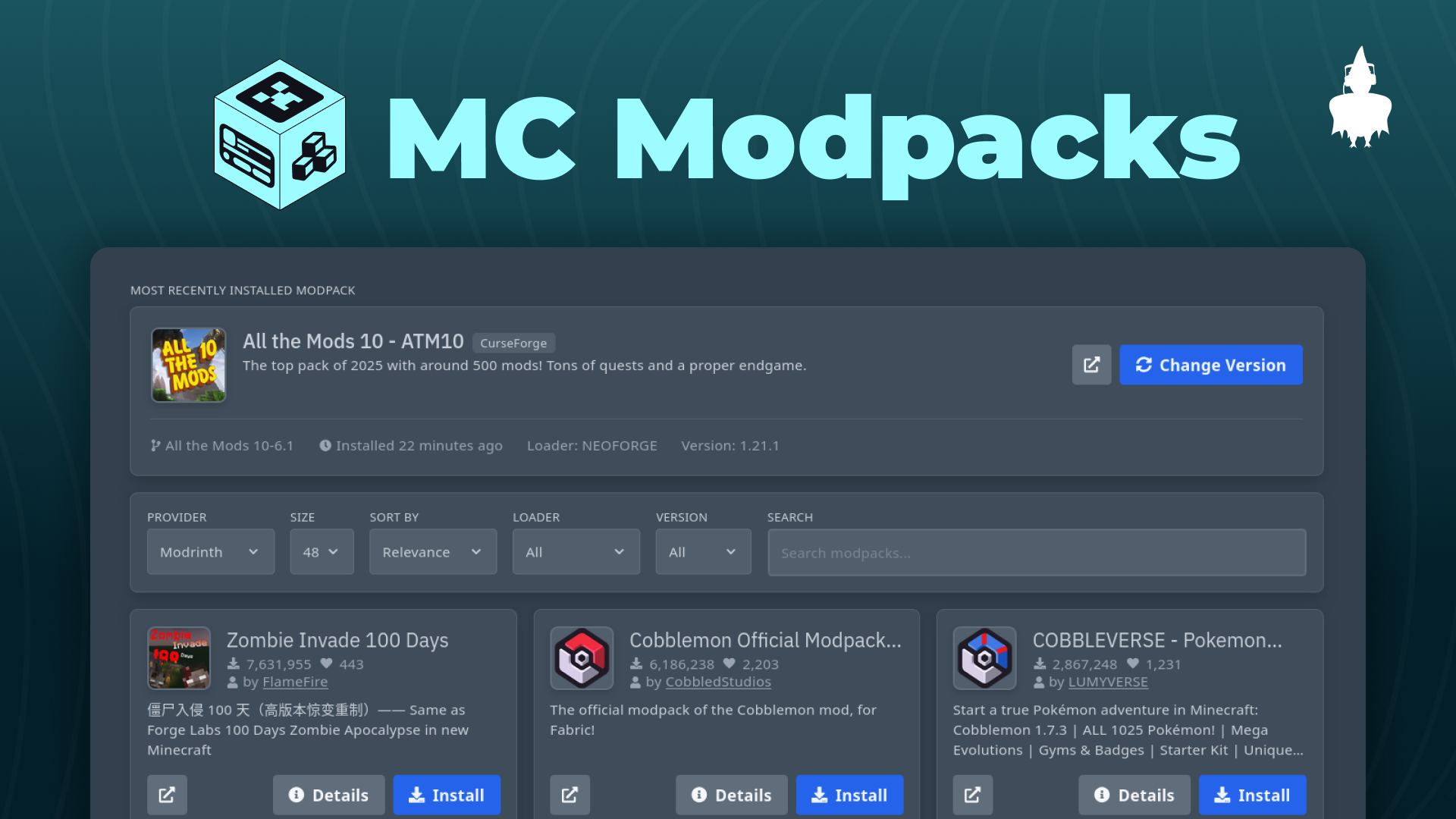
MC Modpacks Manager for Pterodactyl
Welcome
Thank you for purchasing MC Modpacks Manager for Pterodactyl! If you encounter any issues or have questions, feel free to reach out on our Support Server.
Installation
Using an SFTP client of your choice, upload all of the files from the UploadFiles directory into your Pterodactyl directory (usually located at /var/www/pterodactyl)
Frontend Routes
Open the file: resources/scripts/routers/routes.ts
Find this code:
import ServerActivityLogContainer from '@/components/server/ServerActivityLogContainer';Add this code below it:
import MCModpacksRoutes from '@/routers/extensions/mcmodpacks';Find this code:
{
    path: '/files',
    permission: 'file.*',
    name: 'Files',
    component: FileManagerContainer,
},
Add this code below it:
...MCModpacksRoutes,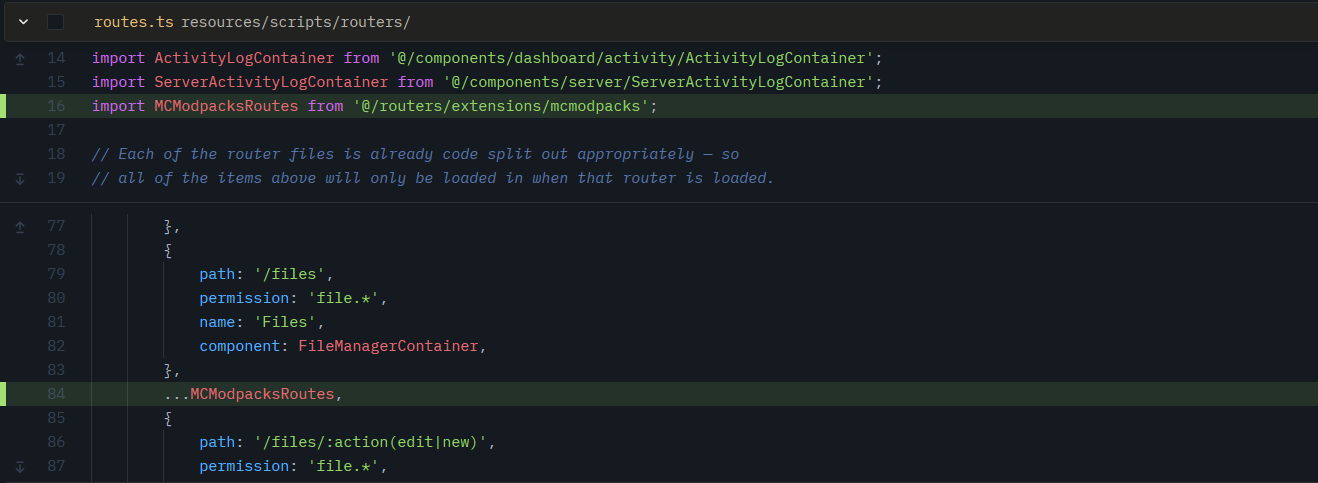
Admin Sidebar
Open the file: resources/views/layouts/admin.blade.php
Find this code:
<li class="{{ ! starts_with(Route::currentRouteName(), 'admin.nests') ?: 'active' }}">
    <a href="{{ route('admin.nests') }}">
        <i class="fa fa-th-large"></i> <span>Nests</span>
    </a>
</li>
Add this code below it:
@include('layouts.extensions.mcmodpacks')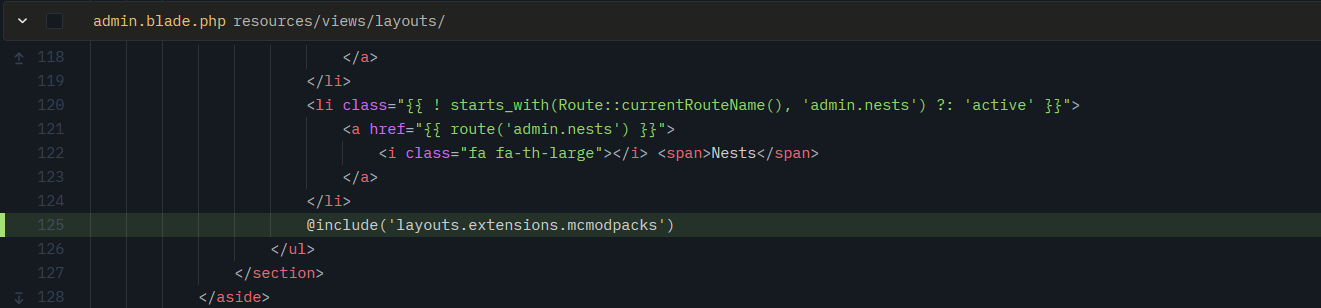
Client API Routes
Open the file: routes/api-client.php
Add this code at the end of the file:
Route::prefix('/extensions/mcmodpacks')->group(base_path('routes/mcmodpacks/api-client.php'));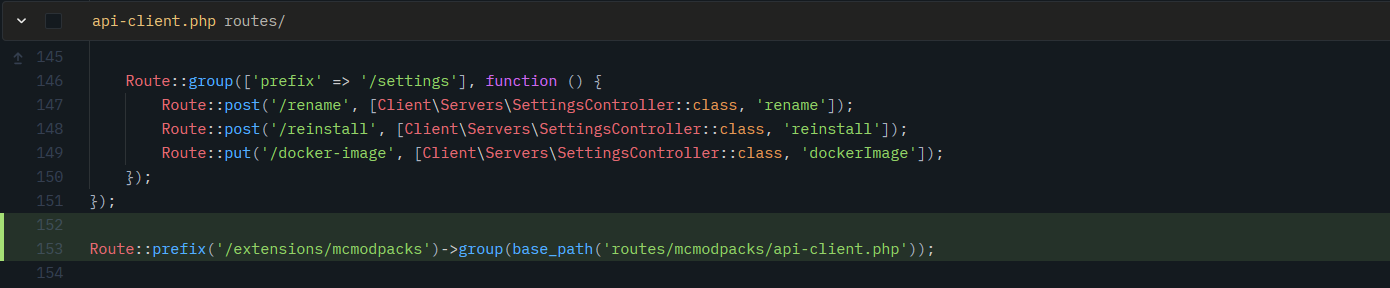
Admin Routes
Open the file: routes/admin.php
Add this code at the end of the file:
include 'mcmodpacks/admin.php';
Install Node.js
If you're using Debian-based or Ubuntu-based distributions, run the following commands:
curl -fsSL https://deb.nodesource.com/setup_lts.x | bash -
apt-get install -y nodejs
corepack enable
On other distributions, install Node.js using the distribution's package manager.
Build panel assets
Now, it's time to clean caches, download Node dependencies, and build the panel assets:
php artisan optimize:clear
yarn install
NODE_OPTIONS=--openssl-legacy-provider yarn build:production
Upload Egg
This egg is automatically managed by the extension and you should not create any servers with it. For creating servers you should use Minecraft Java Egg by MC Jars.
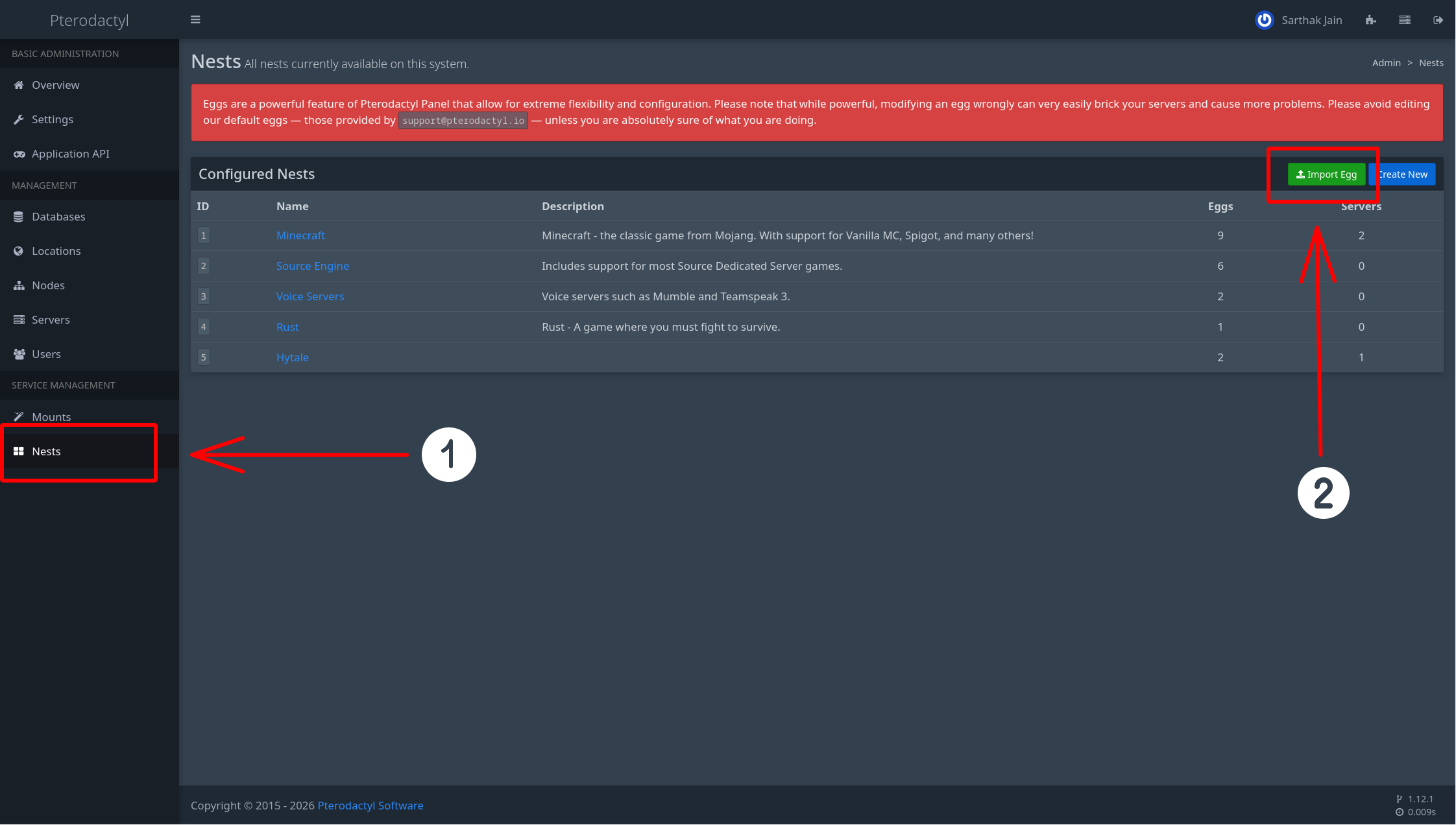
Go to Nests tab in Admin Settings and Click on Import Egg button.
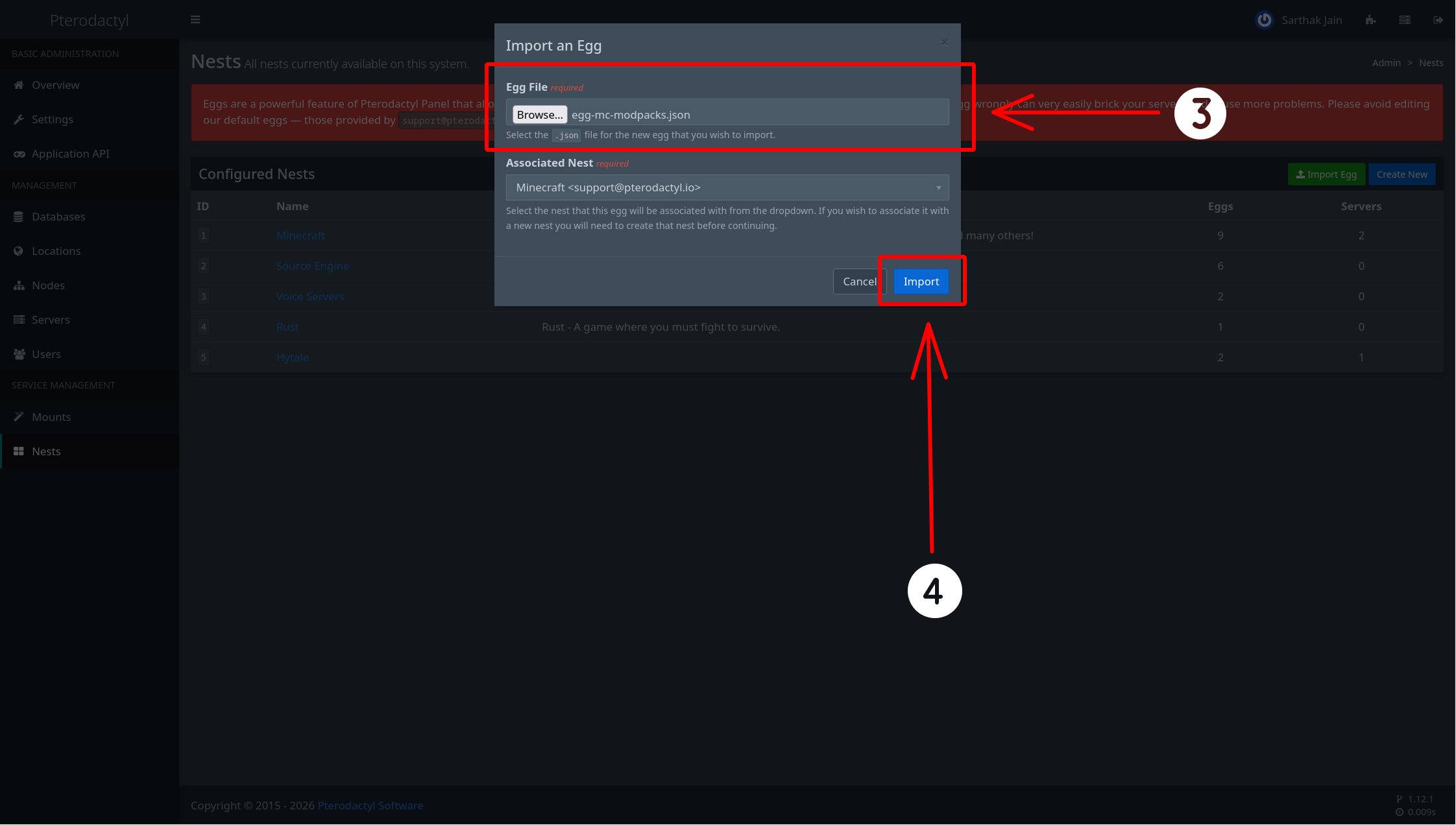
Upload egg-mc-modpacks-installer.json and click on Import button.
Configure CurseForge
MC Modpacks Manager uses CurseForge API to provide access to a large library of Minecraft modpacks. To obtain your key follow the steps below:
Create a account at CurseForge Console
Generate an API key and paste it in the extension's settings.
Wings Modification
If you have already completed this step for any of the following extensions — MC Plugins Manager, MC Mods Manager, or Hytale Mod Manager — you do not need to do it again. They all use the same Wings modification.
These steps apply only to nodes running Pterodactyl Wings and must be completed on each node. If you are using Calagopus Wings, you can skip this section entirely — everything will work without any additional modifications.
Make sure you don't run the commands below inside your Pterodactyl directory (usually located at /var/www/pterodactyl)
Install GoLang
Pterodactyl Wings is written in Go, and Go is required in order to build a Wings binary. If you are using a Debian-based or Ubuntu-based distribution, install Go by running:
apt-get install -y golangOn other distributions, install Go using the distribution's package manager.
Apply patch
Start by cloning the Pterodactyl Wings repository:
git clone https://github.com/pterodactyl/wings.git pterodactyl-wings
cd pterodactyl-wings
Next, using an SFTP client of your choice, upload the WingsModification.patch file into the cloned pterodactyl-wings directory.
Once uploaded, apply the patch by running:
patch -Np1 -i WingsModification.patchReplace Wings Binary
Once the build is complete, stop the currently running Wings service, replace the binary with the newly built one, and start Wings again:
systemctl stop wings
cp "build/wings_linux_$(uname -m | sed -e 's/x86_64/amd64/' -e 's/aarch64/arm64/')" /usr/local/bin/wings
systemctl start wings
Need help?
If you have any questions or need assistance with the installation, feel free to contact us through:
- Support Server: https://discord.gg/sQjuWcDxBY
- Email: sarthak@stellarstudios.xyz